How to make the header transparent in Squarespace (7.0 and 7.1)
I guess you’ve seen those gorgeous full size hero or banner sections on website and you’re wondering how to make the header transparent in Squarespace, to get the same effect No worries, I’m here to break it down for you. It's so much easier than you might think! Grab your laptop and/or coffee and let’s get started.
Achieving this effect depends on the Squarespace version you use and the type of section you have as the hero banner. If you don’t know which Squarespace version you are on go to Website. If you see only two options Pages and Design, you are in 7.0, if you see all the Pages, you’re in 7.1.
Now that you know your version, select your section/template type below and let’s get started!
1.Make site header transparent for Squarespace 7.1
2. Make site header transparent for Squarespace 7.0

Make header transparent for Squarespace 7.1
Transparent header on full-width image or video section
If you have an image in the banner, getting a transparent header is easy! Use the step by step instruction below to get this effect.
Start by logging into your Squarespace account.
Find the site you want to edit and click on "EDIT" to get into the Site Editor.
Hover over the header section of your site.
Click on the “EDIT SITE HEADER” button that appears.
In the Header editor panel, click on “Style”
Select header style as “Dynamic”
This will make the header transparent for an image, video or gif in the banner section.

Get into the Header editor by clicking on the “EDIT SITE HEADER” button

Select the “Style” option
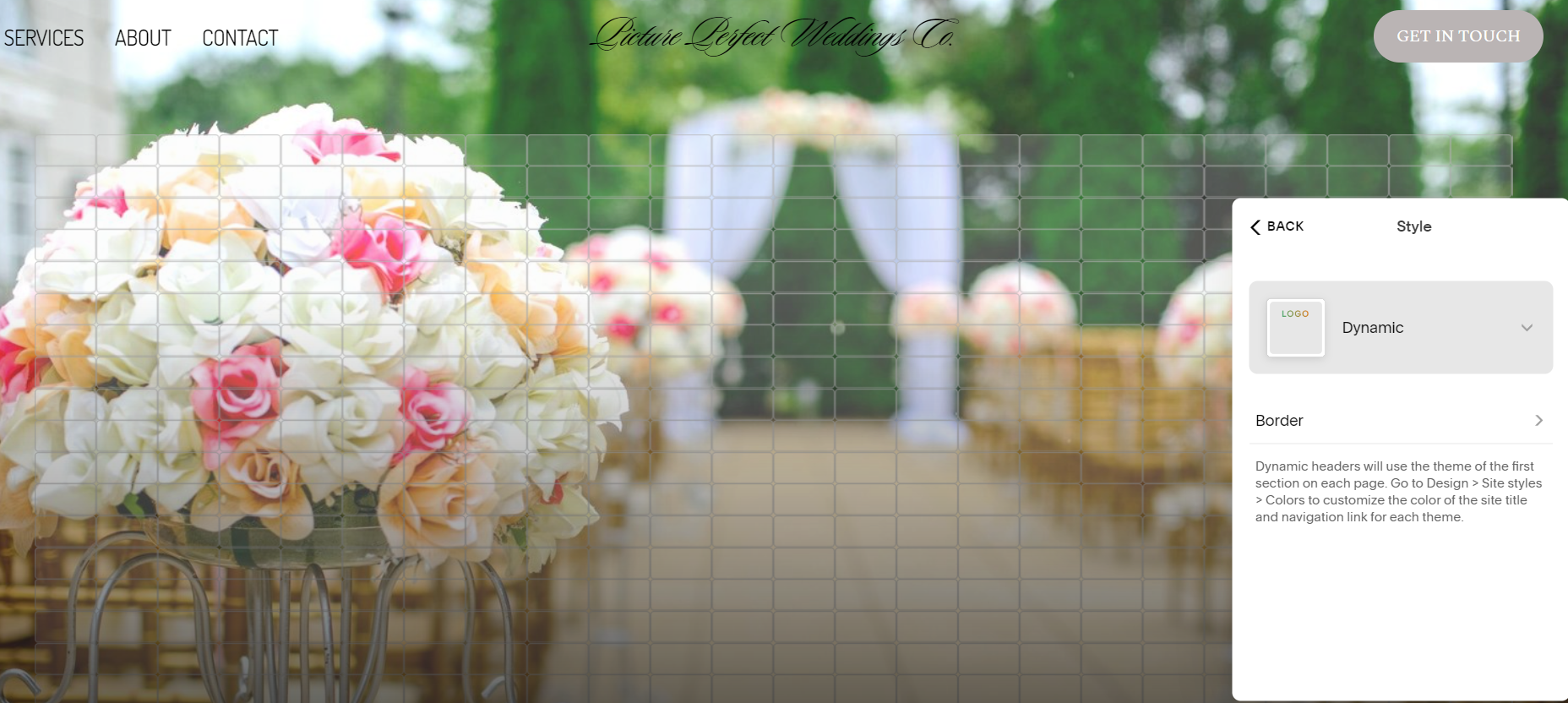
Select the “Dynamic” option
Transparent header on gallery slide-show or list section
There is no direct way to achieve the transparent header effect if you’re using a gallery section. To do this we need help from CSS. If you are not familiar with CSS, read my beginner-friendly CSS guide before starting.
Go to Website>Website Tools > Custom CSS
In the CSS editor copy the below code:
Note: This will work only if you have already set the header style to “Dynamic”
.page-section:first-child {
    padding-top: 0 !important;
}
This code will effect all the pages of the website.
If you want to change the header only on one page you will need the “collection id” of the page. Use the Squarespace ID finder tool to get the collection ID and add the code below:
#collection-1234567abcdef   //replace this with the collection id of your page
  .page-section:first-child
  {
    padding-top: 0 !important;
  }
And you’re done. Your gallery section should now be below the navigation, creating the transparent header look!
Make header transparent for Squarespace 7.0
I love the Squarespace 7.1 version for all things design! But if you’re still using Squarespace 7.0, the instructions to make your header transparent are specific to the template family. We will cover the Brine, Bedford and Pacific families here as they are the more widely used.
If you want to know which family your template is in, here’s a useful list:
Brine Family Templates: Aria, Basil, Blend, Brine, Burke, Cacao, Clay, Ethan, Fairfield, Feed, Foster, Greenwich, Hatch, Heights, Hunter, Hyde, Impact, Jaunt, Juke, Keene, Kin, Maple, Margot, Marta, Mentor, Mercer, Miller, Mojave, Moksha, Motto, Nueva, Pedro, Polaris, Pursuit, Rally, Rover, Royce, Sofia, Sonny, Sonora, Stella, Thorne, Vow, Wav, West
Bedford Family Templates: Anya, Bedford, Bryant, Hayden
Pacific Family Templates: Bryler, Charlotte, Horizon, Naomi, Pacific
Transparent header for Brine family
Find the site you want to edit and go to Website>Design > Site Styles
Scroll down to the “Header: Layout” section
Change the position to “Bottom” for all the options you are using in the navigation bar, like Branding, Primary Navigation, Cart, and Search
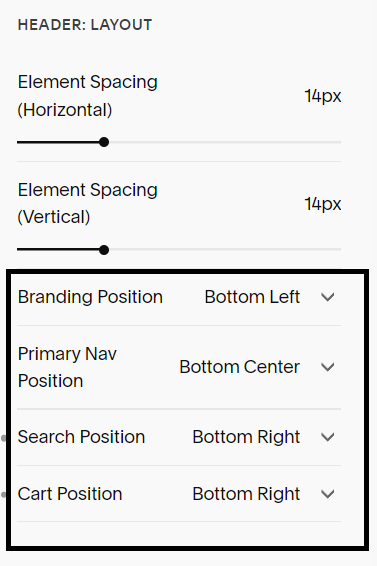
If you have a gallery section at the top of your index page, you need to follow these additional steps:
Additional steps for Gallery section
Find INDEX: GALLERY
Select “Overlay Header on First Index Gallery”

This will make the header transparent on top of a full-screen image, a gallery, or a background video.
Transparent header for Bedford, Pacific family
Find the site you want to tweak and go to Website>Design > Site Styles
Scroll down to the “Site header” section
Select “Transparent on Banner Images”

This will make the header transparent on top of a full-screen image, a gallery, or a background video.
Once you’re done editing make sure you check your Phone view!
Squarespace has separate settings for desktop and mobile. Make sure your transparent header looks slick on smaller screens too.
Need more cool ways to edit your Squarespace site, read these next:
Remove header or footer in Squarespace
If you'd like more pieces like this, you can subscribe to the journal. New essays, in depth analysis on all things technology, design and business. Roughly once a month.