How to hide header or footer for a page in Squarespace 7.1

Maybe you’re designing a landing page or maybe you just want your website to do something cool, I can imagine a few reasons why you might want to hide or remove a header or footer from one page on your Squarespace website.
As it turns out, there is not a toggle switch to turn the header or footer off in Squarespace. To do this you will need to use a little help from CSS. If you’re not familiar with CSS, I advice you to read my beginner-friendly CSS guide before starting.
Now assuming you are a little comfortable with CSS, grab your laptop and/or coffee and let’s get editing!
We are going to discuss two methods of to hide the header or footer on one page in your Squarespace site.
Hide header and footer using the CSS editor (works for all Squarespace plans)
Hide header and footer using Code Injection (this is a premium feature and will not work if your Sqaurespace website is on a personal plan)
1.Hide header or footer on one page using the CSS editor:
To do this go into Website Tools > Custom CSS and add this code:
To hide header of footer from one page you will need the “collection ID” of the page. To find this ID use this Squarespace ID finder extension for Chrome. Copy the code below in the CSS editor. This will hide both the header and the footer:
#collection-1234567890abcdef{
//replace the collection id  with the collection id of the page you want to edit
  .header,footer {
    display:none !important;
  }
}
If you want to remove only one of them, replace header, footer with just header or just footer.
For example. to hide just the footer use:
#collection-1234567890abcdef{
//replace the collection id  with the collection id of the page you want to edit
  .footer {
    display:none !important;
  }
}

If you use the Chrome extension, the collection id is the one right on top of the page!
2.Hide header or footer on one page using the Code injection:
If you are on a Squarespace business plan or higher you can easily hide the header or footer using code injection.
To do this simply go to Page Settings for the page you want to hide the header of footer for. Go to Advance tab. You will see a screen like below:
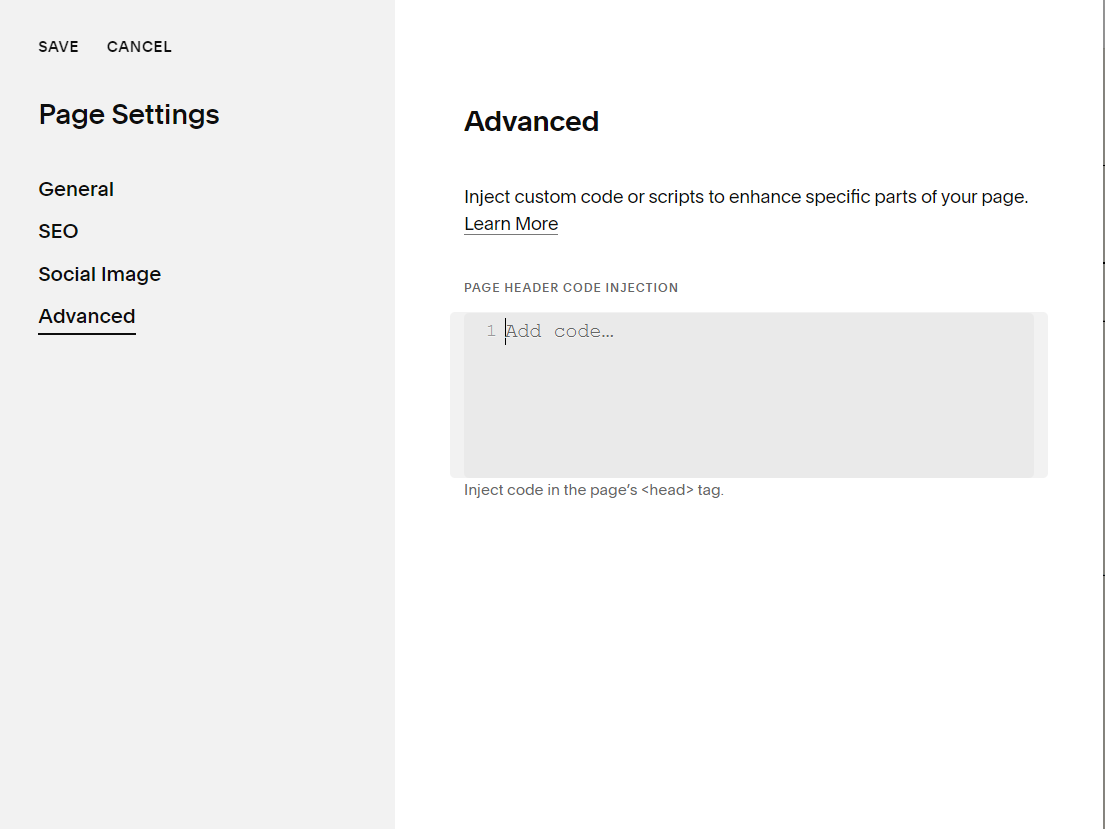
To hide the footer on this page use:
<style>
#footer-sections
  {
    display:none!important;
  }
</style>
To hide the header on this page use:
<style>
.header {
  display:none!important;
}
</style>
Here we are using the <style> HTML tag used to define a block of CSS code within an HTML document. It indicates that the code following the <style> tag is CSS.
And you’re done! You’ve successfully removed the header or footer from a page!
About me:
Hi I’m Aneet. I’m a Seattle-based website designer & developer. My love for design & code is only matched by my appreciation of classic novels, history, and music from eras before I was born (maybe I’m an old soul). I love solving problems through strategy, design or code. I love 1:1 conversations that make you lose track of time. If you want to connect feel free to reach out on Instagram @brandunpuzzled (Instagram is where I hang out, at least on DMs!)
If you'd like more pieces like this, you can subscribe to the journal. New essays, in depth analysis on all things technology, design and business. Roughly once a month.