How to create a full bleed slideshow in Squarespace 7.1

It’s been a while since I posted a Squarespace tutorial! What can one do when life gets in the way of blogging :)
I was working on a Photography website the other day and I realized that the method to add a full bleed slideshow in Squarespace is not that obvious. I love using this for Photography websites are it’s an easy way to showcase your best work in the first few seconds of any user visiting your page (and it works best for photography as the photos are gorgeous and almost always perfectly sized). Though slideshows work well for photography websites I don’t encourage using them for every industry, and when used limit the amount of essential information you put on there. With dwindling attention spans there is a high chance that a website user may simply not wait for the slide to change and skip the home page all together.
Now if you have your heart set on using a full bleed slideshow on your Squarespace website home page, get your coffee and laptop and let’s get started!
Steps to make a full bleed slideshow in Squarespace 7.1
1. Log in to your Squarespace account and navigate to the website you want to edit.
2. Click on the "Add Section" icon that appears when you hover over the header area.

3. Choose "Images" from the options.
4. Select "Slideshow" from the gallery options. (It will be the full screen image with arrows on both sides)
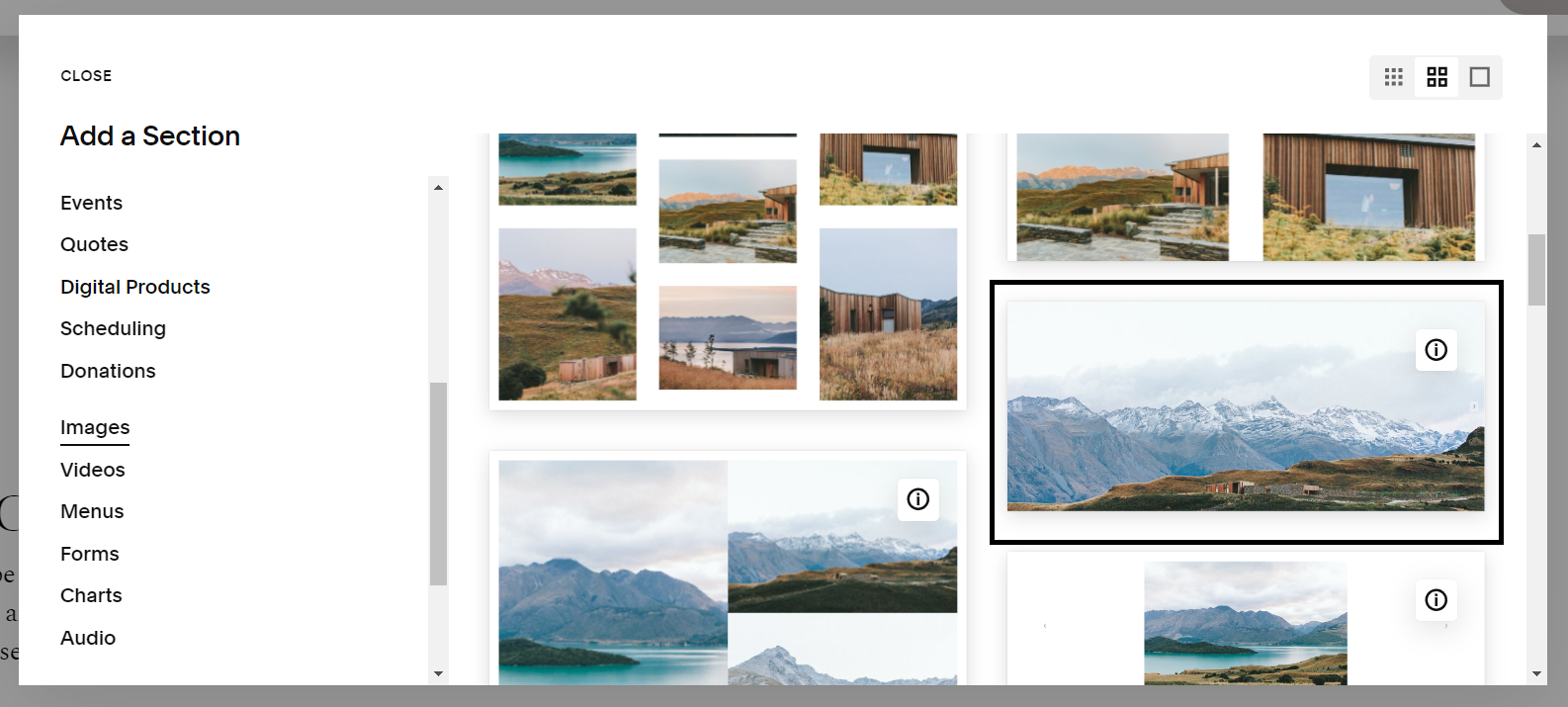
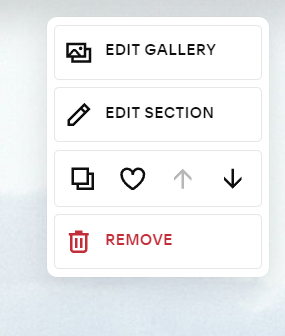
5. Hover over the new section and click “Edit Section” from the menu.
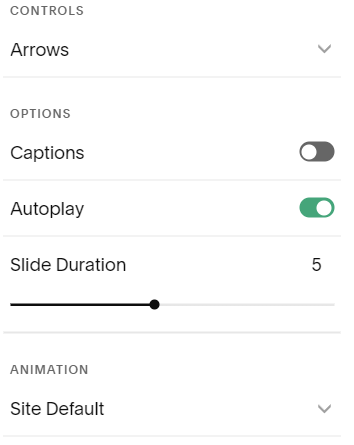
6. Click on the “Autoplay” toggle to make the images auto rotate. You can adjust the duration of the slideshow rotation by adjusting the timer slider.
If you want your slide show banner to be cover the navigation area (i.e make the header navigation transparent) you need a little help from CSS. Follow the below steps to make your navigation transparent. You can find the complete tutorial here.
Go to Website>Website Tools > Custom CSS
In the CSS editor copy the below code:
Note: This will work only if you have already set the header style to “Dynamic”
.page-section:first-child {
    padding-top: 0 !important;
}
This code will effect all the pages of the website.
If you want to change the header only on one page you will need the “collection id” of the page. Use the Squarespace ID finder tool to get the collection ID and add the code below:
#collection-1234567abcdef   //replace this with the collection id of your page
  .page-section:first-child
  {
    padding-top: 0 !important;
  }
And that’s it you have successfully made a full bleed slideshow in Squarespace 7.1!
About me:
Hi I’m Aneet. I’m a website designer based in Seattle, WA. My love for design & code is only matched by my appreciation of classic novels, history, and music from eras before I was born (maybe I’m an old soul). I love solving problems through strategy, design or code and love 1:1 conversations that make you lose track of time. If you want to connect feel free to reach out on Instagram @brandunpuzzled(Instagram is where I hang out, at least on DMs!). Thank You for stopping by :)
READ NEXT: