How to add footer navigation in Squarespace 7.1 and 7.0
While we pay a lot of attention to styling the header, I’ve often noticed that the footer is designed almost like an afterthought. Most of the time there is nothing but a logo, or some contact hours on the footer. While there are a lot of beautiful ways to use the footer space to show off your business and branding, in this article we are just going to focus on footer navigation. But first let’s dig a bit deeper and understand the various ways in which adding a footer to your website can be useful for the overall customer experience.
Why adding a footer navigation is important?
Adding a footer navigation to a website can significantly enhance the overall user experience. The footer, often overlooked, can serve as the anchor at the bottom of a webpage, providing further navigation options, thus keeping retaining your customers attention (and decreasing the bounce rate, a must for good SEO!) . Here are the different page and or links you can add to your footer navigation:
1. Add essential Links:
You can use the footer space to include essential links that users might need, such as contact details, privacy policy, terms of service, and FAQs. Placing these links in the footer ensures users can access important information without having to scroll back to the top of the page.
2. Include supplementary links:
You might not want to add all your pages to the header, not only is that bad for design it may also confuse your users. By adding supplementary links in the footer, you create an additional pathway for users to explore your remaining content. This enhances the overall navigation flow and encourages users to delve deeper into your website. You can also use the space to categorize your links and provide the user a simple way to navigate the site.
3. Any additional content that provides value:
Footer navigation can be an excellent space to showcase additional content, such as featured articles, related posts, or popular products. This encourages users to stay longer on your site, increasing overall engagement and reducing bounce rates.
4. Showcase your Branding:
The footer provides an additional space to reinforce brand identity. You can use this space to include links to social media profiles, company information, and other brand-related content. This makes your website look more professional and can help maintain a consistent image across all pages.
5. Add your legal pages:
Many websites are required to display legal information, such as privacy policies and terms of service. Placing these links in the footer ensures compliance with regulations while keeping the main content focused on user experience.
Now that you know the benefits of adding a footer navigation to your website, it’s time to add footer navigation to your Squarespace website. Fortunately, this is a no code process! So grab your coffee and your laptop and let’s get started!
The method for adding footer navigation depends on the Squarespace version you are using. If you don’t know which Squarespace version you are on you can use this easy hack.
On your Squarespace dashboard go to Website.
If you see only two options Pages and Design, you are in 7.0, if you see all the Pages, you’re in 7.1.
Now that you know your version, select your version and let’s get started!
Adding a footer navigation in Squarespace 7.0
Most Squarespace templates provide a “Footer Navigation” section, making it easier to add a footer navigation to your website.
In the Brine family templates a categorized footer navigation is already added and you can use it as is or modify it for your needs.
For other families like Bedford and Pacific the below steps will work:
Log in to your Squarespace account and navigate to the Pages section.
Navigate to the FOOTER NAVIGATION section.
If you want to add a new page specifically for the footer, click on the + icon to create a new page. For example you can use this method to create legal pages like Privacy Policy etc.
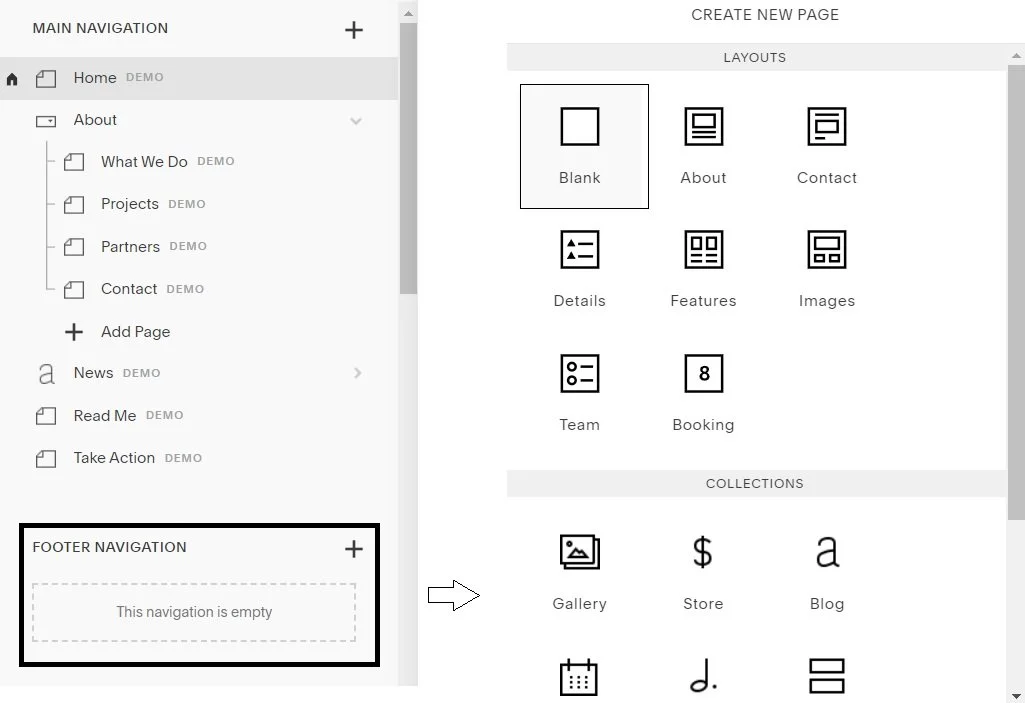
4. If you want to repeat some pages from the header navigation, select the Link option and enter the name of the page you want to link to in the LINK TITLE. In the LINK NAME enter the URL of the page you want to link to.
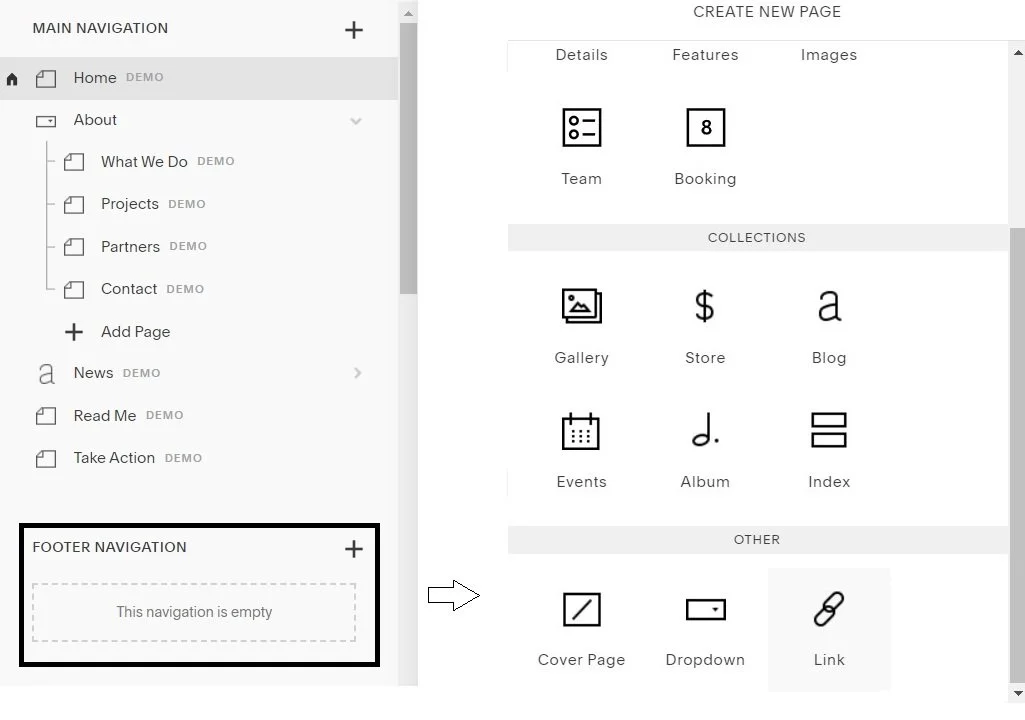
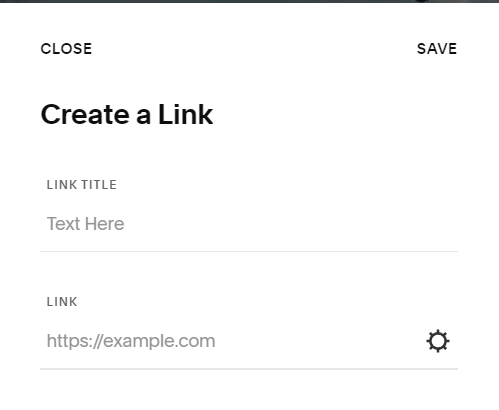
5. Click SAVE once you are done.
Your navigation should now appear in the footer. For Squarespace 7.0, This will be styled according to your theme. To style your navigation go to Website>Design and Search for “Footer”. This will take you to the footer design tweak where you can make style changes to your footer!
Adding a footer navigation in Squarespace 7.1
Squarespace 7.1 templates don’t have a “Footer Navigation” section. You can however create text-based links and add them to your footer. You can use some simple CSS (snippet below) to remove the underlines from the links to make the footer navigation look more like the header navigation.
Here are the steps to do that:
(if you want to only add pages from the main navigation, skip to step 3)
To create pages only for the footer navigation, click on the + icon to create a new page.
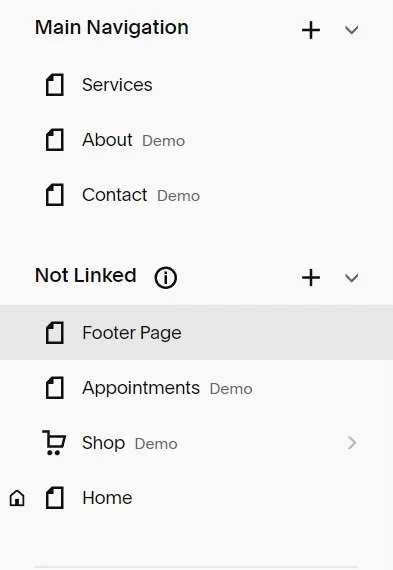
Drag and drop the page you just created into the Not Linked section.
Hover over the footer area in the Squarespace editor and click the “EDIT FOOTER” button

4. Click on “Add block” and select “Text”
5. Click on the link icon to create a hyperlink
6. In the URL field, enter / and the name of the page you want to link to.
7. Select the page you want your text to link to.
8. Once you have all the pages linked, you can style them according to your design style.
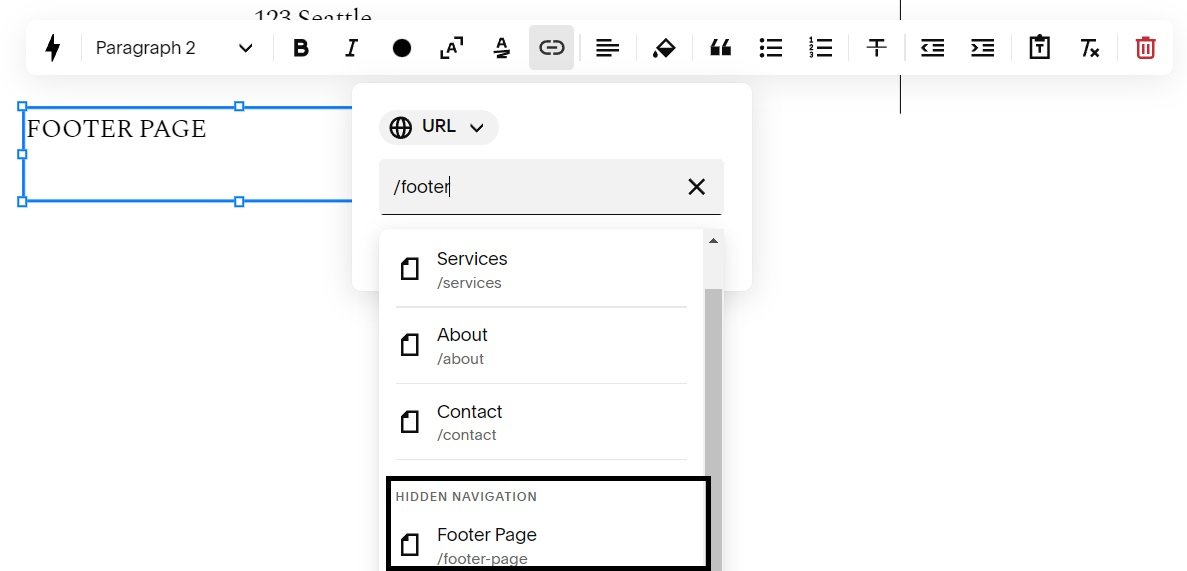
Pages from the Not linked section, will be in the Hidden Navigation section in the dropdown
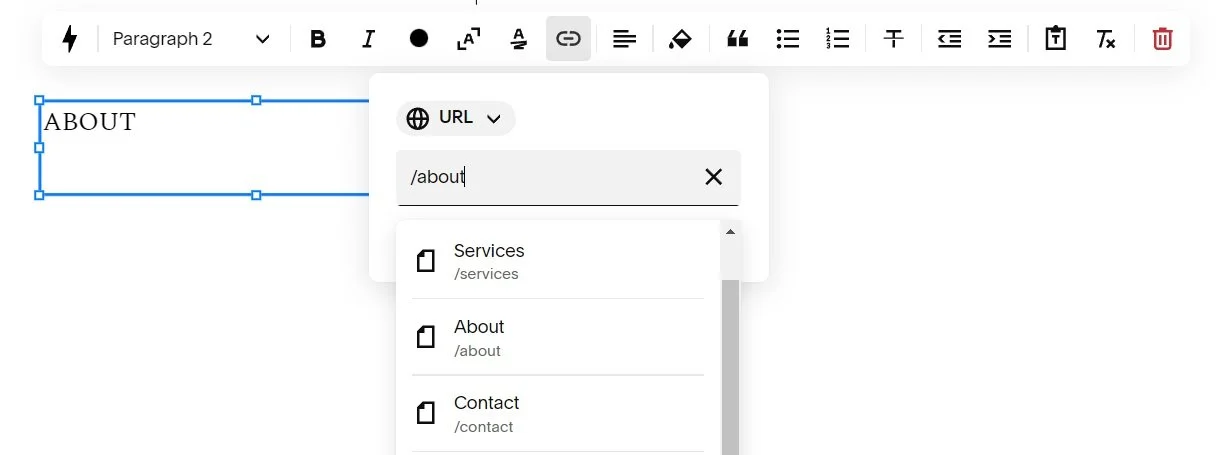
CSS Tip: If you want to remove the underlines from the footer links to make the footer navigation look more like the header navigation use the code below:
footer a {
text-decoration: none !important;
}
And that’s it! You have successfully added a footer navigation to your Squarespace website
As you can see it’s pretty easy to add a footer navigation to your Squarespace website. If designed correctly, it not only provides easy access to key information but also improves navigation flow, boosts engagement, and contributes to better SEO. So don’t let your footer be ignored and use that space to create a more intuitive and satisfying user experience!
And if you’re spending more time configuring Squarespace than running your business, that's what I'm here for. See how I do this on my Squarespace websites here →
Meet Your Designer:
Hi I’m Aneet. I’m a Seattle-based website designer. My love for design & code is only matched by my appreciation of classic novels, history, and music from eras before I was born (maybe I’m an old soul). I love solving problems through strategy, design or code. I love 1:1 conversations that make you lose track of time. If you want to connect feel free to reach out on Instagram @brandunpuzzled (Instagram is where I hang out, at least on DMs!)